If you would like assistance with this, please contact us today for help.
If you’d like to go the DIY route, keep reading.
We’ve done it once or twice:
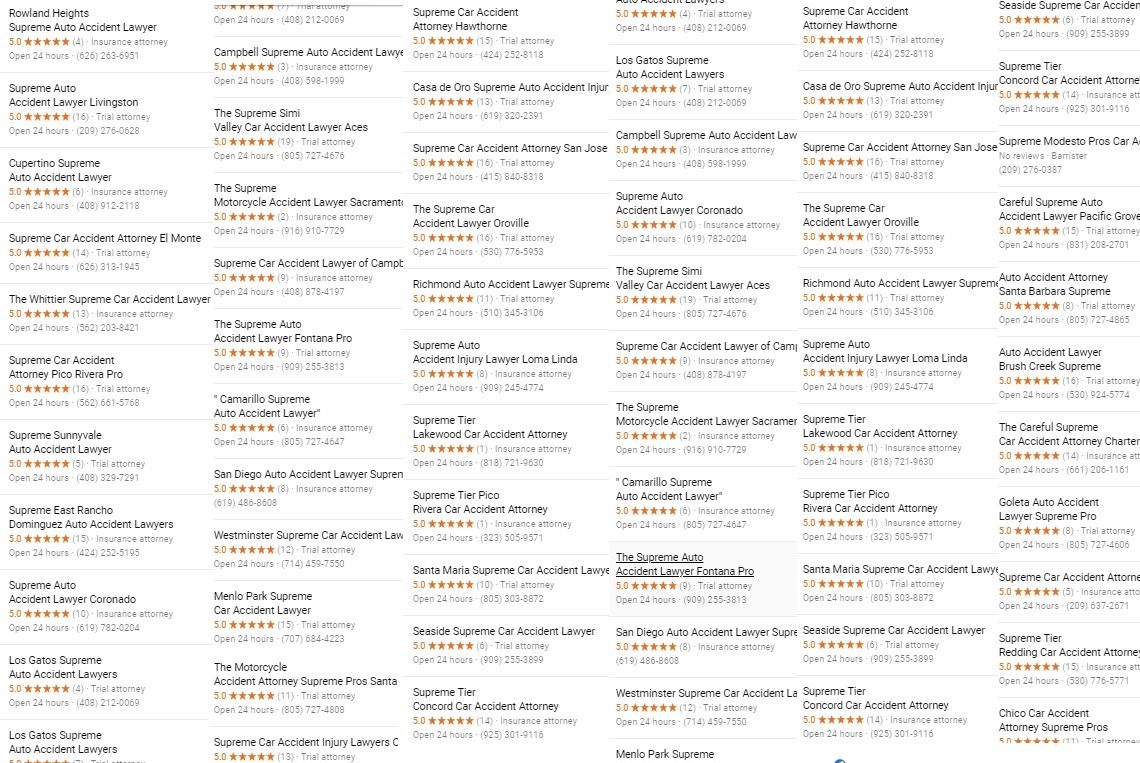
These listings exist to display in Google’s “3 pack” section which display in Google’s search results, commonly referred to as Local Search Results or Maps Results or Map Pack results.
In general, there are 2 effective ways to remove spam GBP listings.
Flagging the listing for removal
The GBP redressal form.
We’ll cover both below.
Remove Fake Listings by Flagging as Spam:
This works best if your Google Account is “seasoned” and has a history of successful business edits.
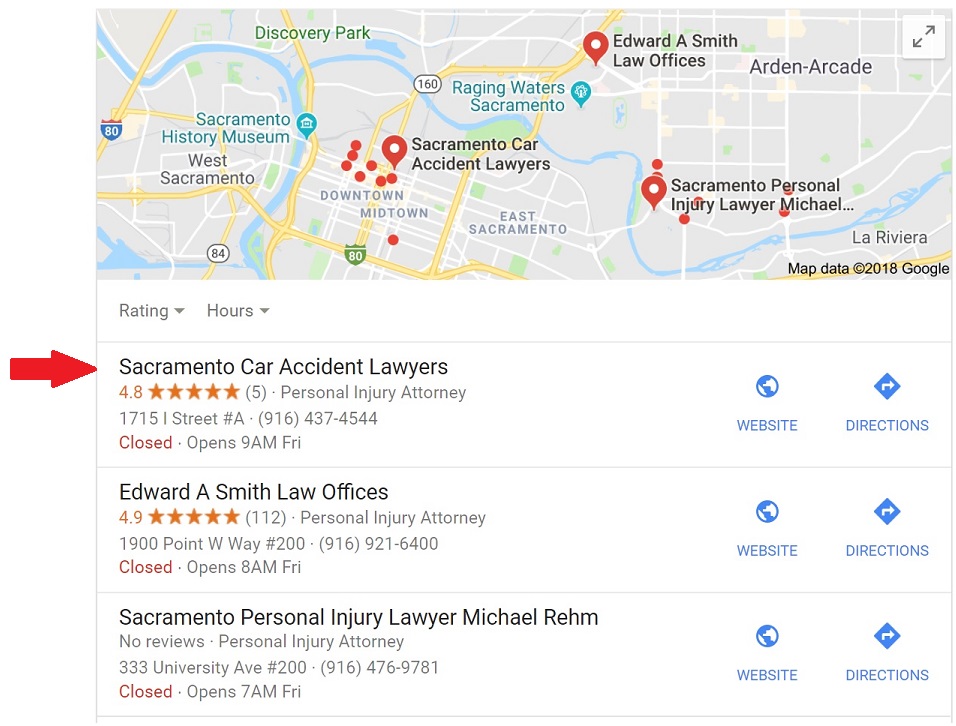
Step #1: Identify and click on the spam listing
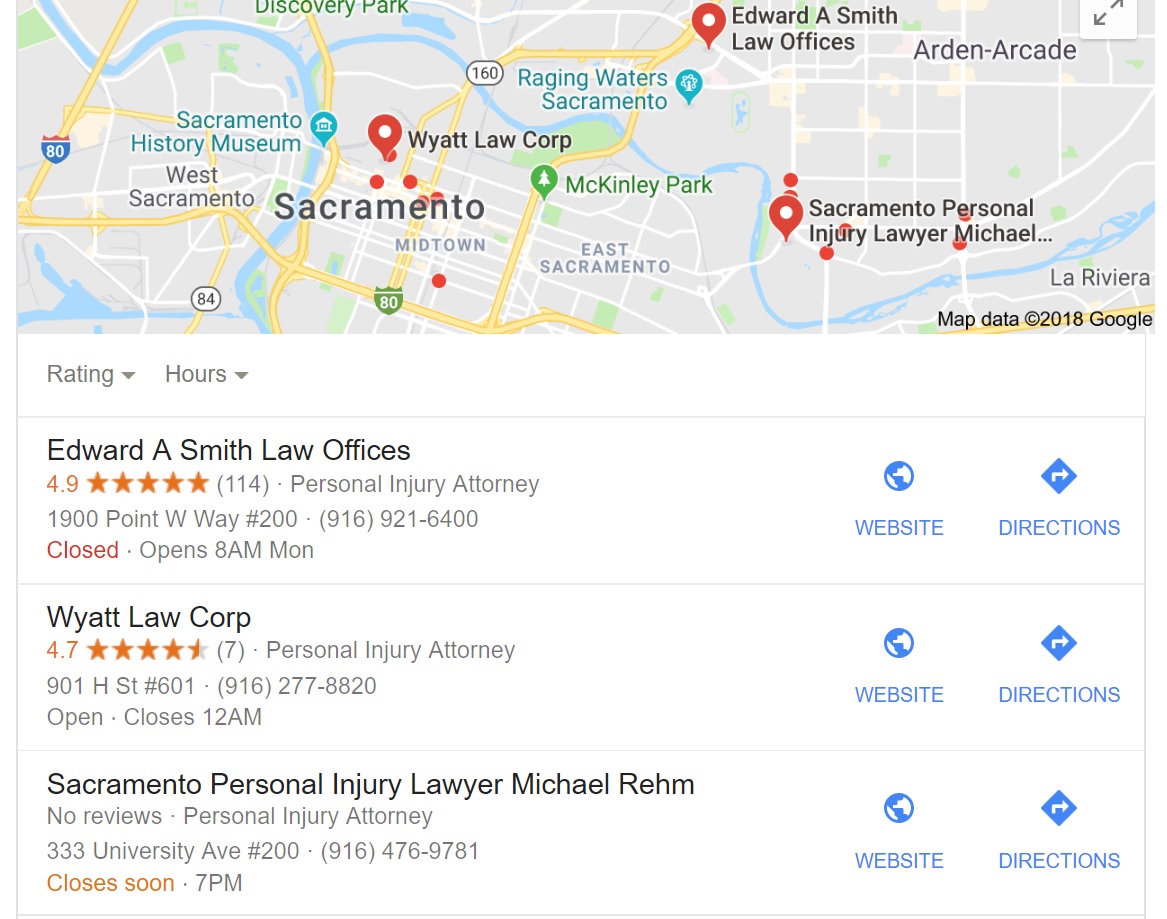
Below is a screenshot of a spam listing for “Sacramento Car Accident Lawyers”. It shows up when you’re searching for a car accident lawyer in Sacramento, California. Click the listing to see more about the listing and for additional options.
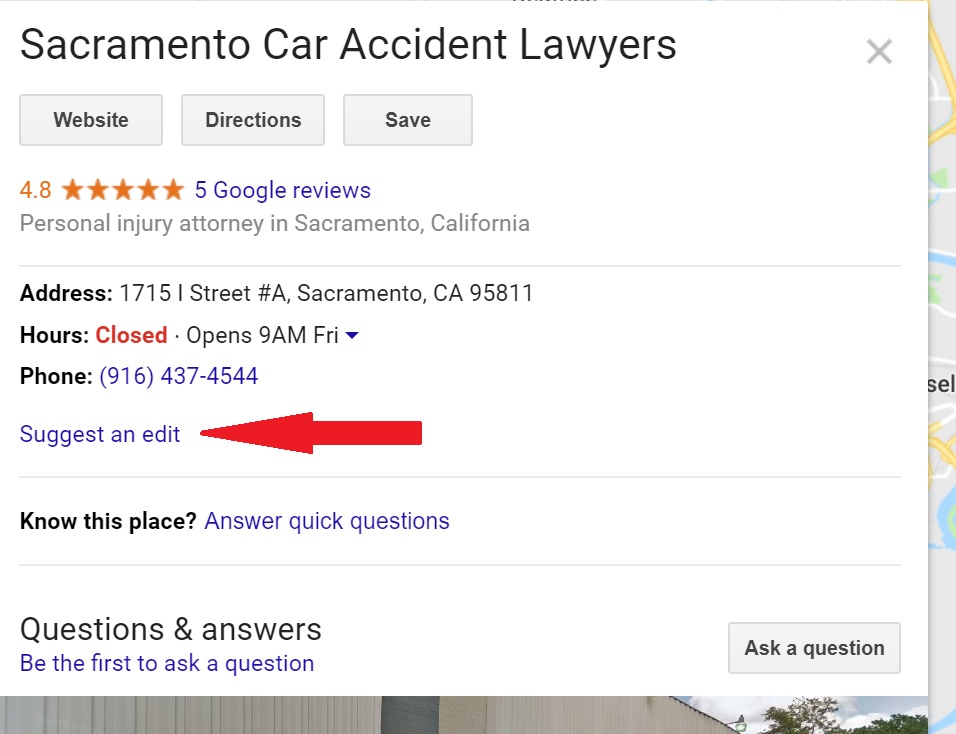
Step #2: Click “Suggest an Edit”.
Be sure you’re logged into a Google Account for this step.
Here’s a screenshot so you know where to look.
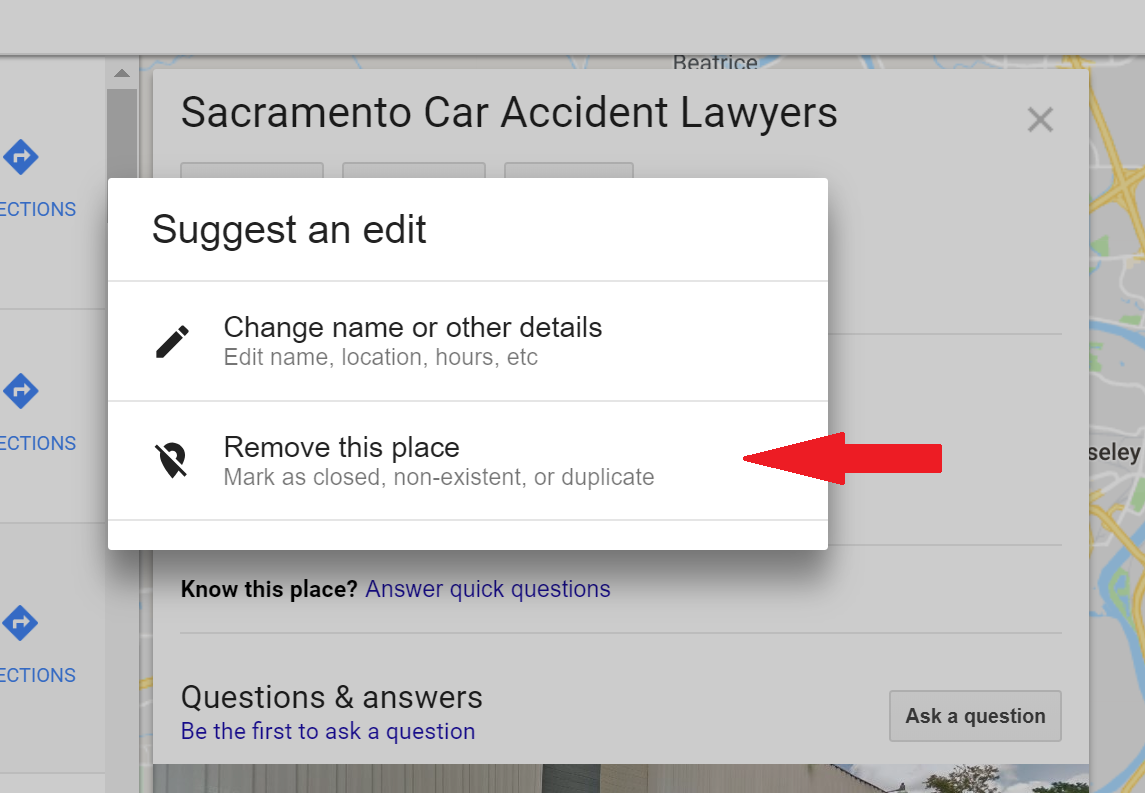
Step #3: Click “Remove This Place”.
Here’s what the screen should look like
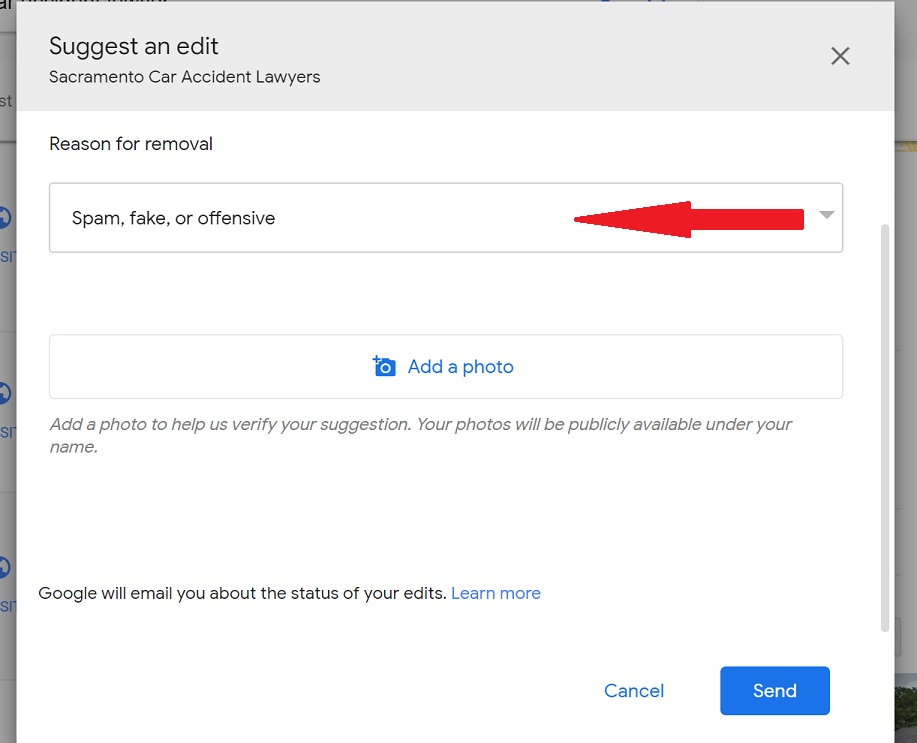
Step #4: Select “Spam, Fake, or Offensive”.
After you’ve clicked “Remove This Place”, you’ll be presented with multiple options. Valid reasons for telling Google to remove a place include the business closing or the listing being spam. In this case, the listing is spam. Below is a screenshot.
5. Wait.
Once all of the previous steps are completed, you’ll need to wait for someone at Google to remove the place. This can take some time.
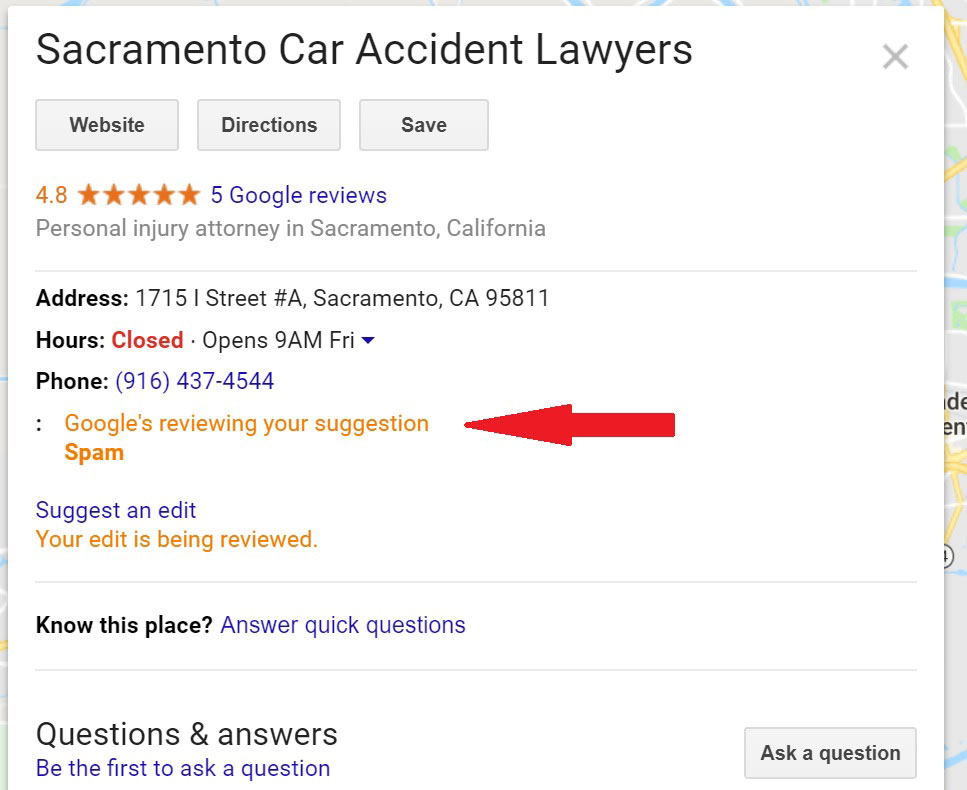
Here’s what the screen will look like after your spam report is complete:
6. Successful removal.
If things go well, you’ll receive an email telling you that your place edit was successful, and the spam will be removed as seen in the screenshot below:
For more stubborn spam, or multiple spam listings, you’ll need the redressal form.
Remove Fake Listings by Flagging as Spam:
1. Locate the spam
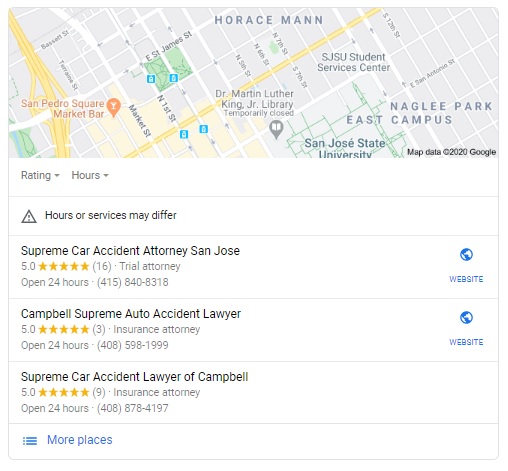
You’ll be able to find it in the Local Pack or in Google Maps:
You’re going to need the Google Maps URL.
To obtain this you’re going to need to locate these listings on Google Maps, so go to google.com/maps and find the businesses there.
I like to type in my keyword, in this case, accident lawyer, then manually navigate to the city, in this case, San Jose, and dig up spam that way.
2. Obtain the spam listing’s URL.
We’ll be making a list and we’re going to need the “business name” and the Maps URL. Here’s how to get the URL.
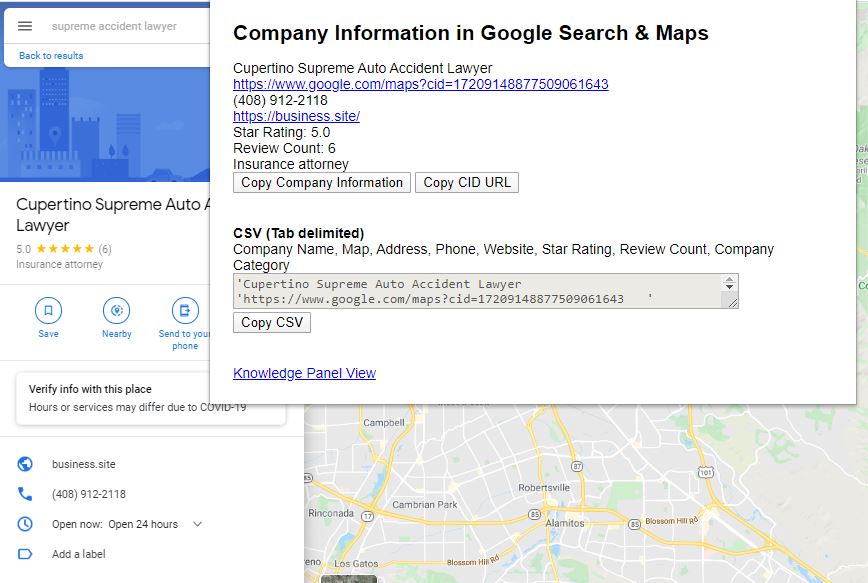
The URL from Google search results will NOT work. You MUST use the URL from Google Maps. Alternately, or, if you’re unable to find a URL on Maps, you can use this Chrome extension (Company Information in Google) to generate a Maps URL for a business you’re looking at.
This URL for the business was generated via clicking through from Google. It will not work:
As a note, ALL of those URLs above are real URLs for the same listing.
3. Build your list with the name and URL.
Open Excel. We’re going to make a CSV file. That’s the same as creating XLS, just save it as a CSV instead of an XLS file when you go to save it by using “Save As”.
Your spam report will have 3 columns. Don’t use more or less.
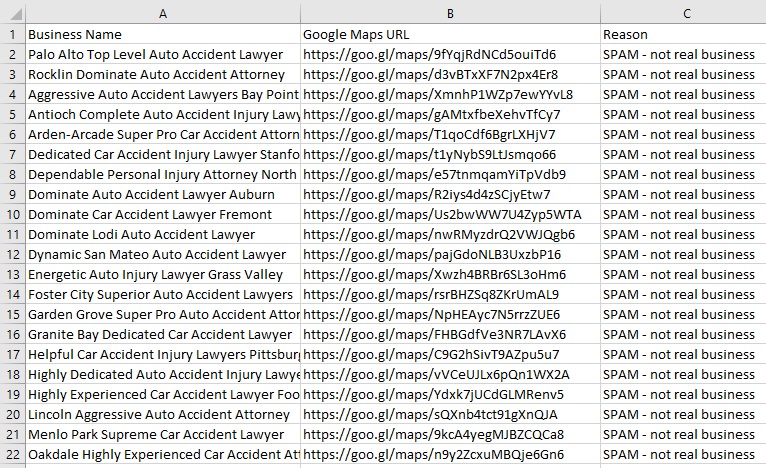
Column A is for the business name, column B is for the Maps URL, column C is for the reason.
Enter the data into the spreadsheet. When you’re done it should look like this:
4. Use the Google My Business Redressal Form
After several people complained, Google finally, quietly released the oddly named Business Redressal Complaint Form (I would have simply called it the Google Maps Bulk Spam Removal Form, but what do I know).
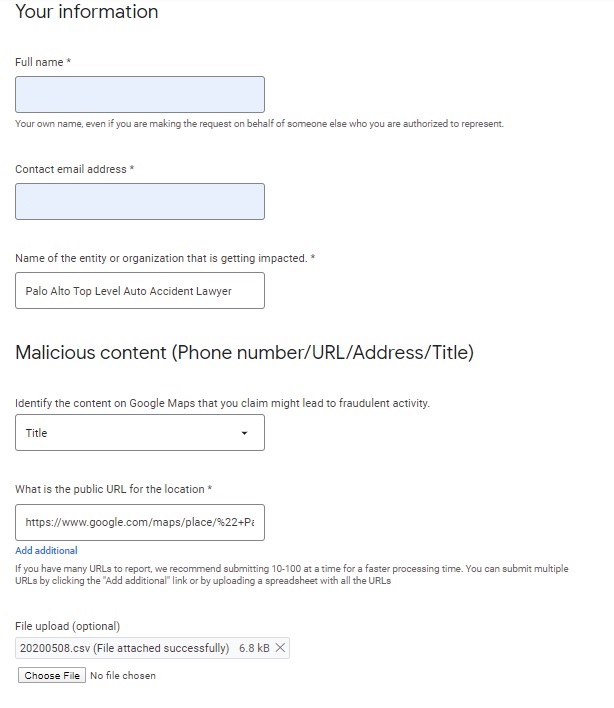
It looks like this:
Here’s what to enter into this confusing form:
Full name: (I usually use my name but sometimes I go by Bob Smith – it doesn’t matter)
Contact email address: (your email address)
Name of the entity or organization that is getting impacted: Here I usually enter the name of one of the spam listings. I’ve used the word “multiple” here before and had problems, but I’ve also had it work.
Identify the content on Google Maps that you claim might lead to fraudulent activity: I always select “Title” here.
What is the public URL for the location: I always enter 1 Maps URL here (you have to enter a Maps URL)
File Upload: This is where you will attach the CSV spreadsheet that we created earlier.
Please explain in detail why you believe the content on the above URLs is malicious to be on Google Maps: Keep this short and sweet. I usually write “Attached is a spreadsheet of lead gen spam. Thank you and have a great day.”
5. Submit the form.
You did it!
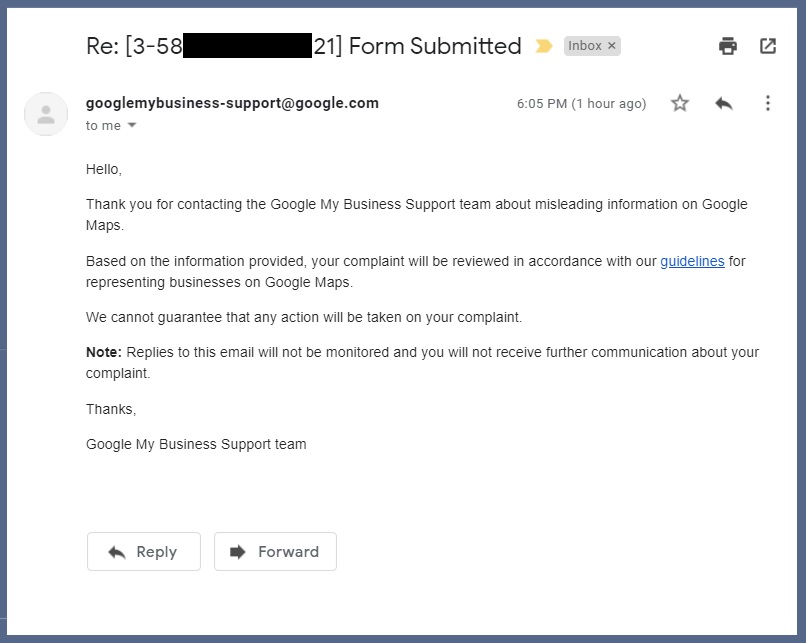
Once you submit the form, you’ll get an email from Google and then never hear from them ever again. This is what that email looks like:
The GMB team generally tends to get to these in about 20 business days. There is no way to speed this up. Make a note on your calendar to check back in 20 days. If the spam is still there after 21 days, you must have done something wrong. Submit it again. If you did everything correctly, the spam will be gone, and if you had to do this, it’s probably time to check Google Maps and start the process again.
Hiring the professionals to do the job.
This is just one of the many many tasks we handle here with great care for our great clients. We’re a small, lean, boutique agency who has worked with law firms exclusively for nearly a decade after many years of SEO work for a variety of industries before settling on a niche. While we rarely handle one-off projects, if we’re helping you generate leads online this will be a task that we’re performing.